A practical guide to the Information Management Maturity Assessment in IAR: running and updating your assessment, benchmarking against your cohort, and setting targets that close the gap. Illustrated with a worked example: a local authority partway through its second assessment cycle.
Everything you need to run the IMMA, and nothing you don't.
The full maturity toolkit: run and update the IMMA on the Assessment screen, see your cohort position on Benchmark, and set improvement targets with tracked actions on Targets.
Register visibility: view the record classes from your disposal schedules and record assets against them. Exports, disposal approvals, and steward workflows sit in the full agency tier.
Two roles. The IM team works the assessment, register, and targets with edit access; the Executive Sponsor sees the same views read-only, the evidence base for governance reporting.
A lean navigation: My Actions, Classes, Assets, Assessment, and Targets. Each screen in this guide is shown as this tier sees it.
The left-hand navigation on this tier is deliberately small. Everything supports one job: understand your maturity, prove it, and improve it.
| Screen | Where | What you do there |
|---|---|---|
| My Actions | For me | Every action assigned to you, across all targets, in a single list with status and due dates |
| Classes | Register | The record classes from your disposal schedules, with retention period, trigger, and disposal action; a read-only reference |
| Assets | Register | The information assets recorded against each class; use + Add asset to record new ones |
| Assessment | Maturity | Run, update, and submit the IMMA: 22 topics across eight domains |
| Targets | Maturity | Planned maturity improvements, and the actions that will deliver them |
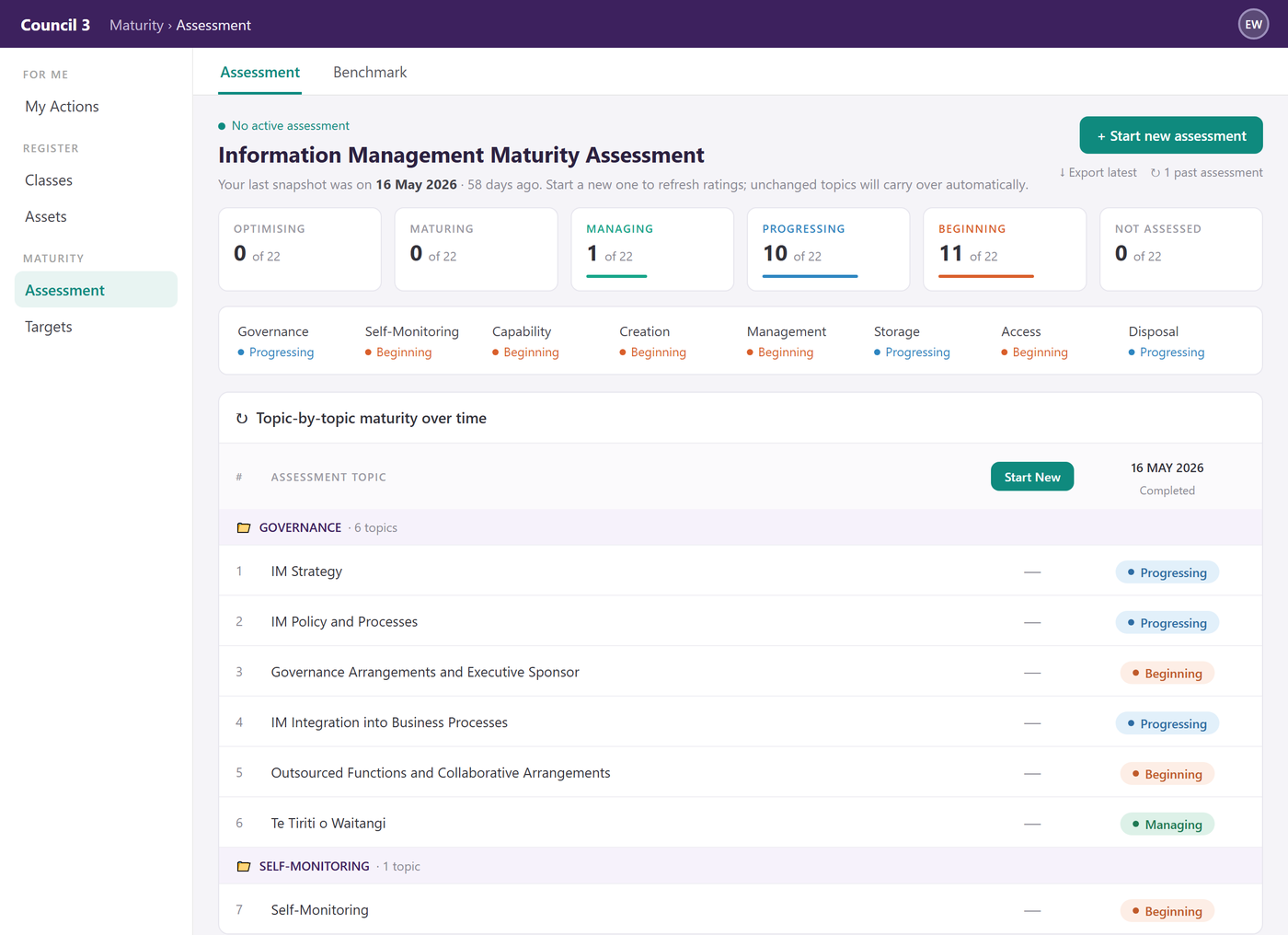
The IMMA covers 22 topics across eight domains: Governance, Self-Monitoring, Capability, Creation, Management, Storage, Access, and Disposal. Each topic is rated on five maturity levels, from Beginning through Progressing, Managing, and Maturing to Optimising. Topics can be worked through in any order, by more than one person, and saved as you go.
Open a topic, choose the maturity level that best fits, and record the reasoning behind the rating. The guidelines sit alongside as you work.
When all topics are rated, submit. The assessment locks as a dated snapshot and a new column appears, ready for the next cycle.
Next cycle, start a new assessment. Unchanged topics carry over automatically, so an update only takes as long as the things that changed.
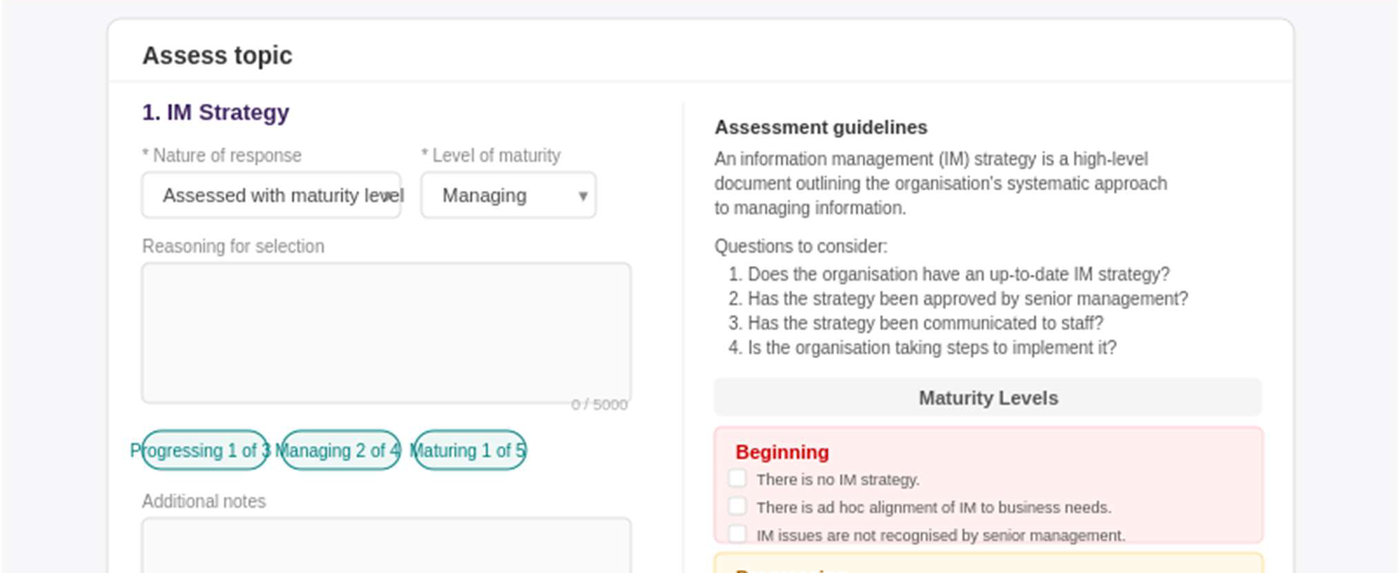
Clicking a topic opens the Assess topic panel. Your response sits on the left: how the topic was assessed, the maturity level, and the reasoning for the selection. The right side keeps you honest: a definition of the topic, questions to consider, and observable indicators for each maturity level that you can check off to support the rating.

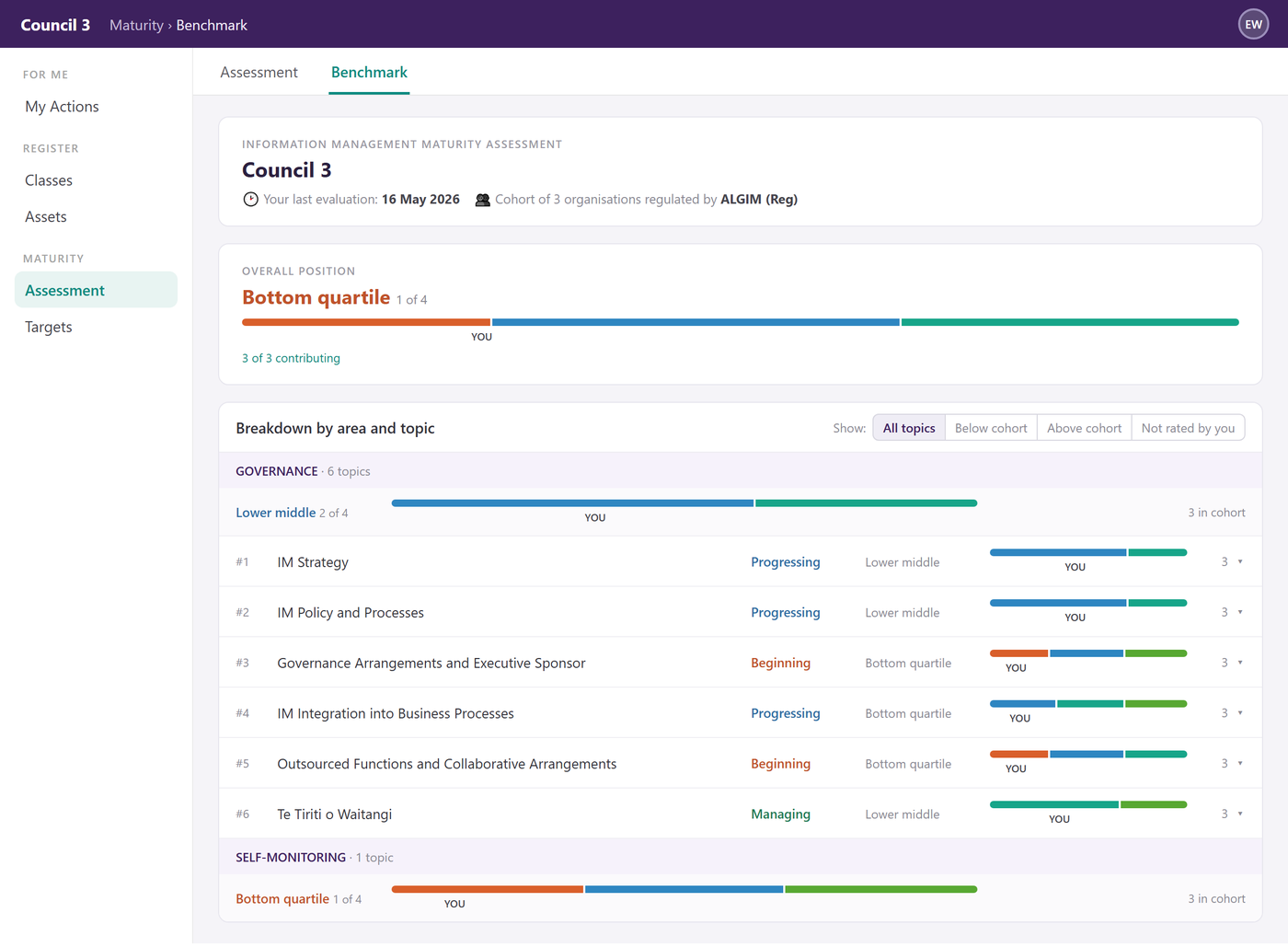
Once an assessment is submitted, the Benchmark tab places it against every other organisation in your cohort; in the worked example, a cohort of three local authorities overseen by ALGIM. Your overall position is shown as a quartile, then broken down by domain and by topic, with your position marked against the cohort's spread. Individual organisations are never identified; you see the distribution, not the names.

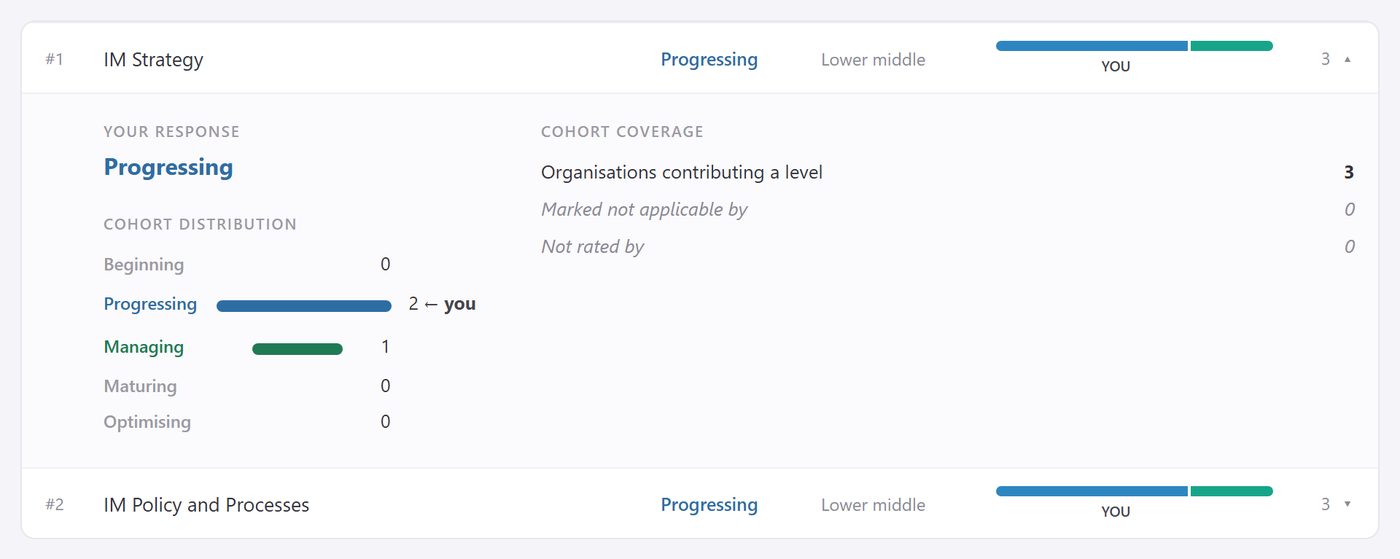
Every topic row expands into the detail behind it: your response, how many organisations contributed a level, and the cohort's distribution across the five maturity levels with your position marked. This is where the conversation moves from "where are we?" to "who should we be learning from?"
Use the Show filter to cut the list down to the topics below or above the cohort, or the ones you have not yet rated. Sorting by position makes the improvement conversation with your Executive Sponsor a short one.

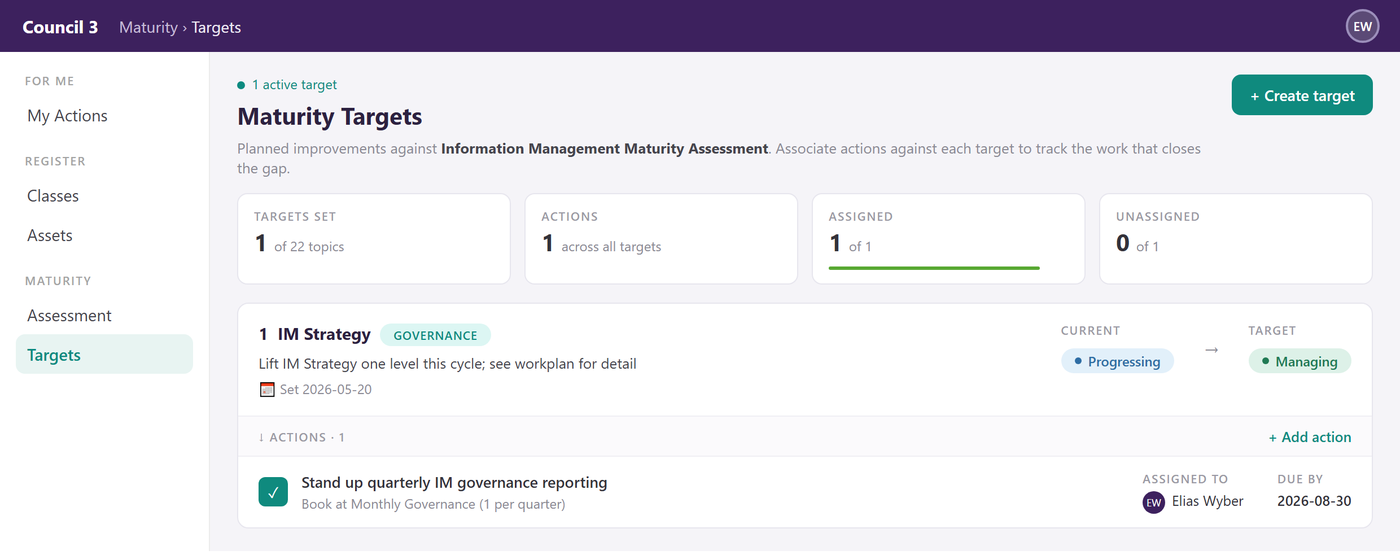
Where the Assessment tells you where you are and Benchmark tells you where that sits, Targets record where you intend to get to and what you are doing about it. Each target names a topic, the current and intended maturity level, and the actions that will deliver the shift, each with an owner and a due date. Actions assigned to you appear in My Actions, so the work list and the maturity plan are the same thing.

The maturity tier includes a working view of the register, enough to ground the assessment in what you actually hold.
The record classes from your disposal schedules, with retention period, trigger, and disposal action visible on every row. Clicking a class opens a read-only preview with the full disposal detail. Classes cannot be edited on this tier.
Assets are recorded against classes and inherit their disposal settings. Use + Add asset to build the picture of what the organisation holds. Exports and disposal workflows are part of the full agency tier.
Actions from maturity targets land here, one flat list with status, priority, and due dates. Work it day to day; the targets update as actions complete.
The Executive Sponsor sees every screen in this guide without edit access: current maturity, cohort position, targets, and progress. Governance reporting without asking anyone to assemble it.
A walkthrough of the maturity tier takes under an hour, and you leave with your own assessment underway.